


A new star has emerged in the QA world: Playwright – a powerful, open-source framework from Microsoft that’s quickly gaining recognition in the field of end-to-end test automation. Why is it becoming so popular? Playwright offers a unique combination of speed, reliability (thanks to smart features like auto-waiting), and versatility, supporting tests across multiple browsers with a single API. You can read more about the tool here.
In this article, I’ve compiled specific tools and best practices that genuinely make my work with Playwright easier and help me write more stable, faster, and more readable tests.
1. Debugging Tests
When writing code or automated tests, one of the most important steps is quickly identifying and resolving issues. Playwright offers strong support in this area with the Playwright Inspector – an interactive debugger that lets you see exactly what’s happening in the browser during test execution.
The Inspector launches in a separate window and allows you to step through the test line by line. It also helps you inspect element states, copy selectors, and – most importantly – observe the page’s behavior in real time. It looks like this:
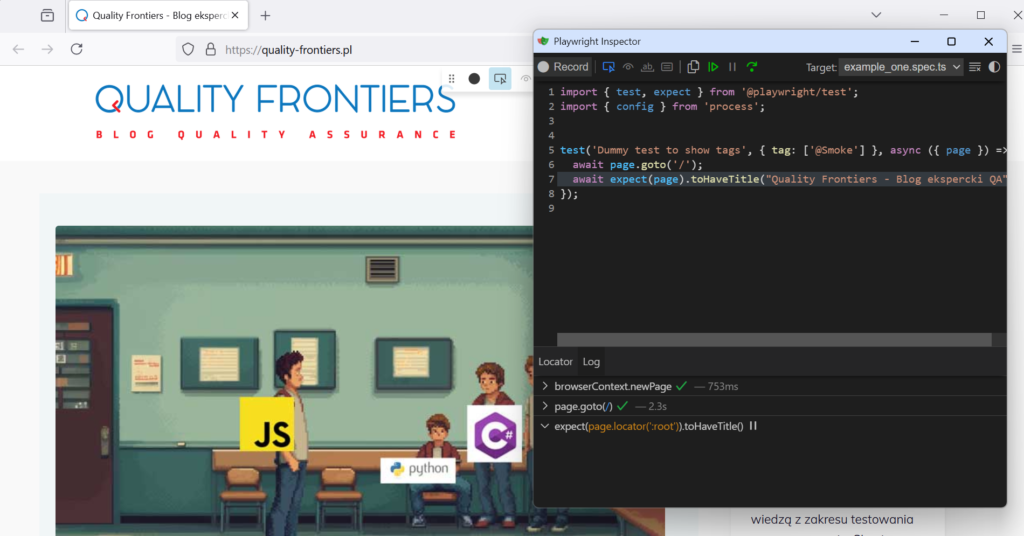
Playwright offers several ways to debug tests – including integration with a VS Code extension that lets you run tests directly from the editor. However, in my day-to-day project work, I most often rely on the Inspector described above – it’s fast, reliable, and lets me precisely observe what’s happening on the page at any given moment.
To run a test in debug mode, simply add the --debug flag to your test command:
npx playwright test --debugFor more information on this tool, see the official documentation.
2. Projects and Their Configuration
Playwright allows you to define projects – different test configurations within a single global setup. This lets you run the same tests across multiple browsers without duplicating code or manually switching configurations.
export default defineConfig({
  projects: [
    {
      name: 'Chrome',
      use: { browserName: 'chromium' },
    },
    {
      name: 'Firefox',
      use: { browserName: 'firefox' },
    },
  ],
});
However, their role goes far beyond just specifying which browser to use in a test. Projects allow you to create separate test configurations – not only for different browsers, but also for different languages, environments, devices, or test suites. This makes it easy to run the same scenarios, for example, in both desktop and mobile modes. It’s also a great way to organize your tests – for instance, by separating API tests from UI tests or smoke tests from full regression suites.
Importantly, each project can also have its own settings, such as retries, testMatch (which defines the set of allowed test files), or environment-specific options like increasing the number of retries for Firefox if needed, for example when tests are known to be less stable in that browser. Here’s a sample configuration:
projects: [
  {
    name: 'API tests',
    testMatch: /.*\.api\.spec\.ts/,
    retries: 0,
  },
  {
    name: 'UI tests',
    testMatch: /.*\.ui\.spec\.ts/,
    retries: 2,
    use: { browserName: 'chromium' },
  },
],
Individual configurations can be run selectively using the --project flag, for example:
npx playwright test --project="API tests"

npx playwright test --project="UI tests".
In summary, projects are a simple way to increase test flexibility and better reflect real-world user scenarios across different environments.
3. Ignoring Tests
In day-to-day work, it’s common to temporarily disable a test – for example, when it’s failing in a specific browser or is currently being fixed. Traditionally, this was handled by commenting out the test code or adding temporary conditional statements. However, such approaches are messy, hard to maintain, and prone to errors.
Playwright makes it easy to skip a test in a clean way. You can mark the test with the skip annotation, like this:
test.skip('This test is temporarily disabled', async () => {
  // ...
});
It’s also worth mentioning a similar and equally useful feature. If a test is flaky or needs attention, instead of disabling it entirely, you can use fixme():
test.fixme('Requires a fix after the last refactor');This doesn’t skip the test but marks it in the report as needing a fix. That way, it stays in the test suite, but you get a clear signal that something’s wrong.
4. Saving Session State
Many end-to-end tests start with logging in a user. Repeating the login process in every test is inefficient – it slows down the entire test suite and can lead to instability (e.g. due to rate limits on the login API). Playwright offers a mechanism for saving and reusing authentication state, which significantly optimizes this process.
Playwright allows you to save the authentication state to a file. The saved storageState file (usually in JSON format) can then be used to initialize new browser contexts that already have a logged-in user state.
How to do it? After successfully logging in a user during a test, you can save the browser context state using the context.storageState() method, like this:
await context.storageState({ path: 'playwright/.auth/user.json' });5. Soft Assertions
By default, Playwright stops test execution at the first failed expect. However, there may be situations where you want to check multiple conditions at once and see a full list of failures instead of just the first one.
That’s where expect.soft() comes in handy. Instead of stopping the test, expect.soft() records all failures and reports them together after the test finishes. Example:
import { test, expect } from '@playwright/test';

test('Checking a few elements on the page', async ({ page }) => {
  await page.goto('https://example.com');

  expect.soft(await page.locator('h1')).toHaveText('Dashboard');
  expect.soft(await page.locator('#login')).toBeVisible();
  expect.soft(await page.locator('.profile-picture')).toHaveAttribute('src', /avatar/);
});
If all three assertions fail, Playwright will report them together in a single report, without stopping the test after the first error.
When should you use expect.soft()? For example, in smoke tests or any other cases where you intentionally want to collect as many errors as possible during a single test run.
