


Imagine such situations:
- We have automated tests that we want to run in more than one environment.
- We want to execute some of the automated tests in the production environment. To achieve this, we have selected a few scenarios that only perform read operations and do not interfere with the environment’s resources. We need the ability to run only this specific group of tests when starting the tests.
- Our automated tests are divided into different functionalities, such as login, purchase flow, and admin panel. We want to be able to run tests for a specific group instead of executing all tests at once.
Are the above requirements familiar to you? Below, I have outlined how to configure Playwright (on Node.js) to enable parameterized test execution based on the environment and the selected test group.
Environments vs tests
Let’s start by setting up a configuration that will support running tests in more than one environment. Let’s assume we are working with two environments: stage and prod.
In the file playwright.config.ts, in the section projects let’s add two projects:
projects: [
    {
      name: 'stage',
      use: {
        baseURL: 'staging.example.com',
      },
      retries: 2,
    },
    {
      name: 'prod',
      use: {
        baseURL: 'production.example.com',
      },
      retries: 0,
    },
  ],
We assigned a unique URL for each of the two environments, as well as the number of times the tests failed (i.e., retries).
Now, if we want to run tests with the configuration for the stage environment, we can use the standard command with a flag specifying the environment name:
npx playwright test --project=stageThis way, we get a flexible mechanism that allows us to dynamically switch the tested application’s URLs. Note that for each environment, you can assign not only its URL but also a different configuration, such as the number of retries for failed tests (as shown above) or the browser.
Tags
We already have a solution that allows us to parameterize test execution based on environments. But that’s not all. What if we want to run only specific groups of tests? For example, after deploying to the production environment, we may want to execute only tests marked as ‘read’—those that only retrieve data. Or perhaps we want to check the results of tests for a single functionality while ignoring the rest. How can we achieve this? Tags can be used for this purpose.
Let’s assume that we want to mark some of our tests as smoke tests. To do this, we need to add { tag: ['@Smoke'] } to the test signature. The complete setup should look as follows:
test('Dummy test to show tags', { tag: ['@Smoke'] }, async ({ page }) => {
  await page.goto('/');
  await expect(page).toHaveTitle("Quality Frontiers - Blog ekspercki QA");
});
Now let’s try to run only the test marked with this tag. Let’s add one of the environments to it and we get a command like this:
npx playwright test --project=stage --grep "@Smoke"Playwright will run only the test marked with the Smoke tag in the environment labeled as stage.
Once the test is complete, a report will be generated and there will be a indication of both the environment (actually the project) and the tag used.
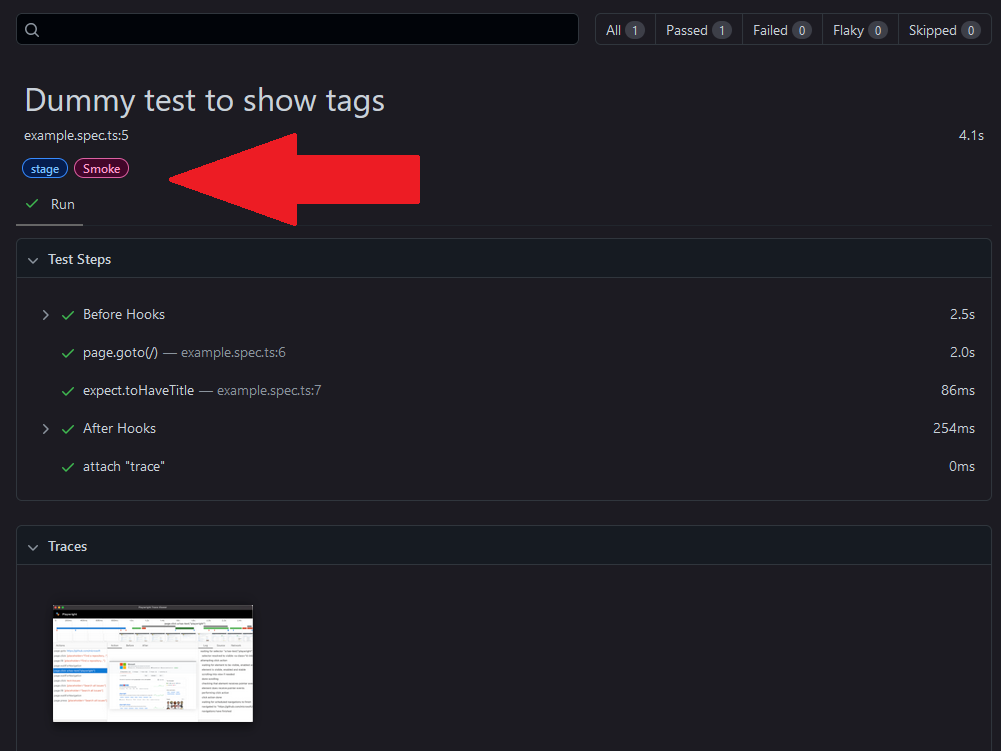
We can run tests using more than one tag:
npx playwright test --project=stage --grep "@Smoke|@HappyPath"The above command will run all tests tagged with @Smoke and tagged with @HappyPath.
UI Mode Support
UI Mode (which is a playwright test runner with which we can run and debug tests) also supports running tests using tags. To open this tool, type the command in the console:
npx playwright test --uiA list of our tests will appear on the screen. Note that each test includes its name and the tag associated with it.
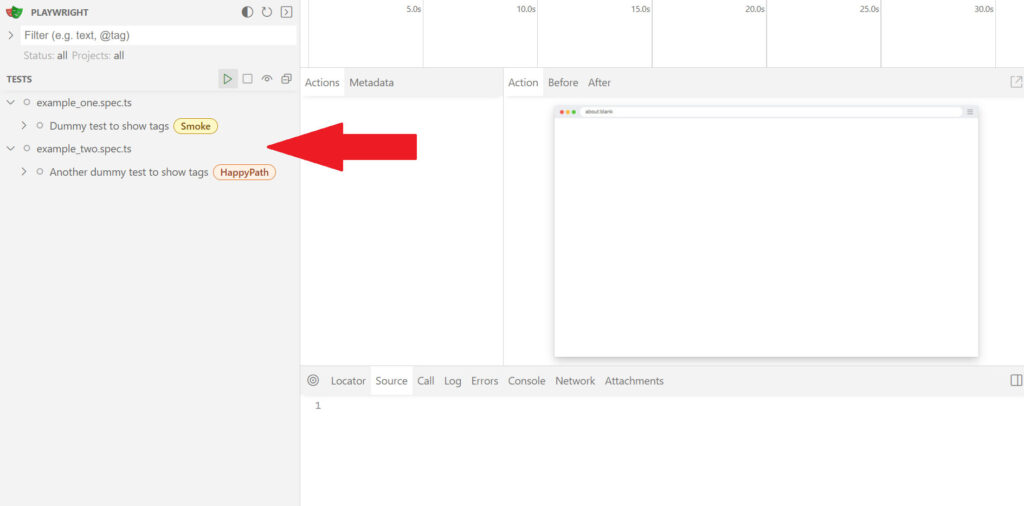
Now we can filter tests by a specific tag:
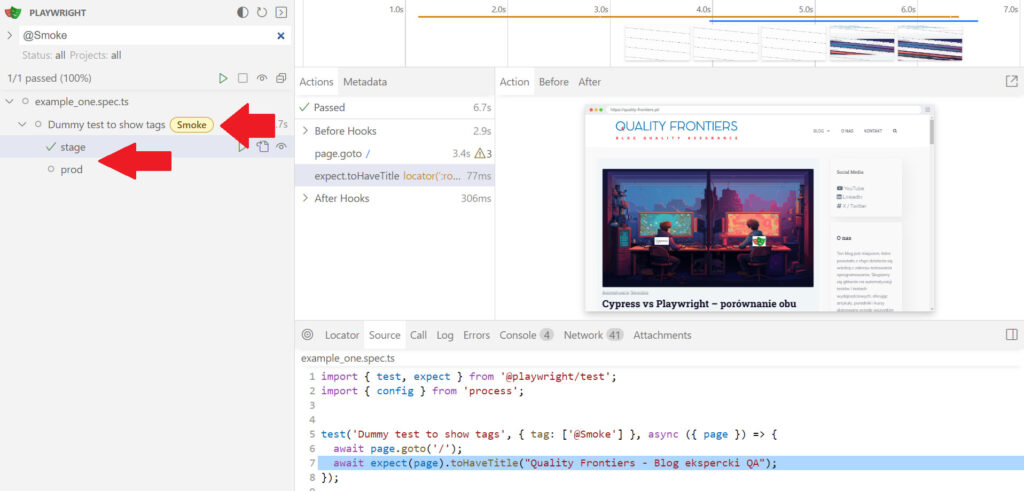
Which strategy to adopt when tagging tests?
This is strongly dependent on the application itself, but I suggest two types of labeling tests:
By type of testing:
- Smoke tests
- Regression tests
- E2e tests
- API tests
- UI tests
Due to the functionality being tested, for example:
- login
- payment
- shopping path
- admin
In addition, a useful practice is to label unstable tests, such as flaky.
